

Work in the workspace
Features start in the workspace. Add fields to a storage, wire up a sync, build blocks, listings and pages: every change shows in the develop version at once, so you can build the frontend against it in parallel. Regenerate the Client SDK whenever the API surface changes so your code stays in sync:Preview a version
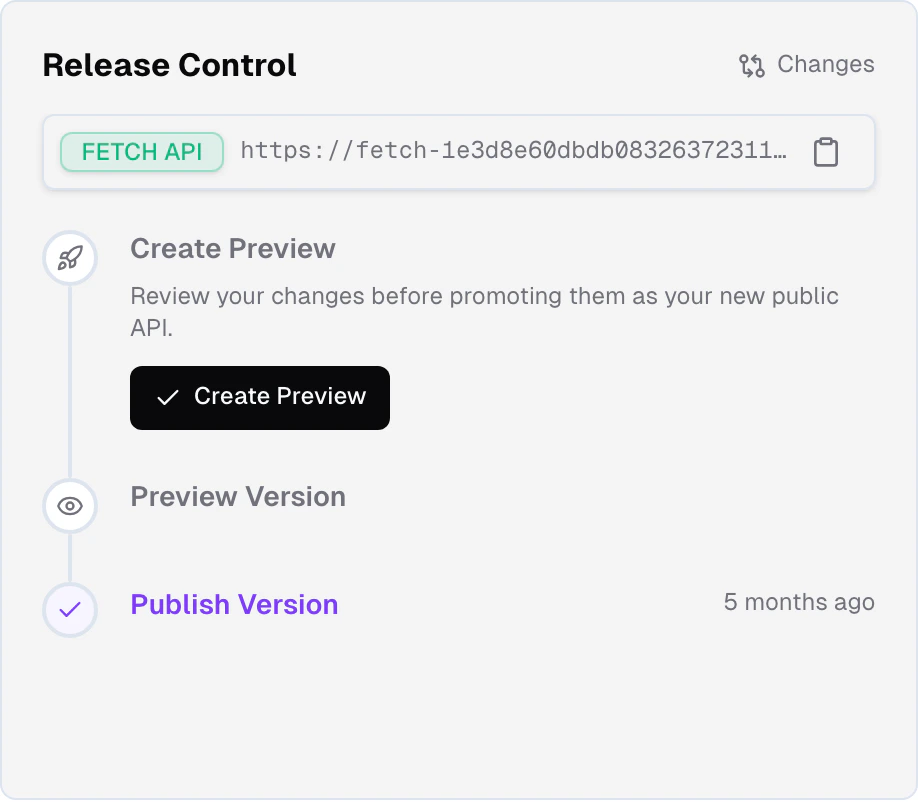
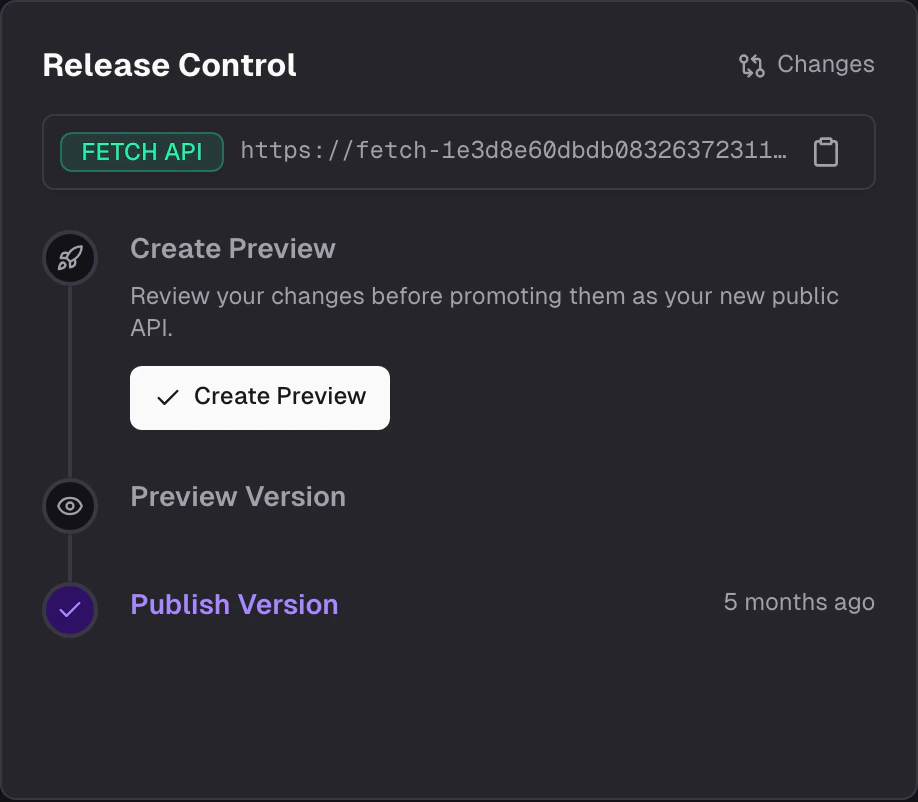
A preview version is a snapshot of the workspace as it is when you create it. Open your project’s dashboard in the admin app and click Create Preview in the Release Control section, or runfrontic release preview from your editor.
Test against the preview version
Generate the Client SDK against the preview
From your editor, generate the Client SDK against the preview
version. The generated SDK carries the preview’s version key.The key is baked into the generated client files, not stored in an
env var you have to remember to flip.
Deploy your frontend against it
Build, merge and deploy the frontend release with that SDK. The
deployed app reads the preview version instead of the public version.
Test the deployed app
This is what you test: not a moving target, but the exact version you
will publish, running where your customers will use it.
Iterate
If you find issues, fix them in the workspace, preview a new version,
regenerate the SDK, deploy and test again.
Publish the version
When the preview version has finished building and the app deployed against it passes your tests, open your project’s dashboard and click Promote to Public in Release Control, or runfrontic release publish.
Publishing is instant. The preview version becomes the public version: it already holds processed data, so nothing is rebuilt. Every frontend reading the public version gets the new one in the same moment, with no downtime and no version skew between callers.
The version you tested is now the public version, so the app you deployed against it is already live. No redeploy, no downtime: a blue-green switch.
Afterward the project has no preview version until you trigger the build of the next one.
Version keys
A version key ties a request to one API version. The Fetch API reads it from thefs-version header:
Develop version
A key fixed when the project is created. Reads the workspace as it
is now. For development, never for customer traffic.
Preview version
A new key each time you preview a version. It stops working when the
preview is published or replaced. Release Control shows it as the
Version Key.
Public version
An empty key. A request without an
fs-version header reads the
public version.How the Fetch API picks a version
By default, the Fetch API serves the public version. Only a request with a valid version key reads another version:
When you publish, a frontend deployed against the preview is live on the public version at once, with no code change. When a preview is replaced instead, its key is no longer valid the moment the new build starts, so a frontend built against it reads the public version, which may lack what it expects: see the warning under Preview a version.
Without Release Control, or before the first publish, the public version is served straight from your workspace, so every workspace change takes effect at once. Remove a field from a storage schema and the affected records are reprocessed; until that finishes, some records still have the old shape and some the new one.
Deploy order
Preview, deploy, test, then publish. The app goes live before the version does:- Preview a version and generate the Client SDK against it.
- Build, merge and deploy the frontend release with that SDK. From the moment it is live, the app reads the preview version: the version you are about to publish.
- Test the deployed app.
- Publish the version. The version you tested is now the public version, so the app is live at once, with no second deploy.
Related
Release Control
The workspace, the API versions and how a change moves through
them.
What's in an API Version
Exactly what an API version contains, and what all versions share.